

NewWeb app and Windows · version 2.0
Professional Traverse & Level Adjustment: precision in every point
Enter the coordinates you measure on site, close on a known point and get an adjusted, checked result with a signed PDF report. Level books are reduced, checked and adjusted the same way. Every job is saved to your account, ready to open, copy or share.
Free with your Excel to KML account · Works offline after your first login · Watch the intro
Video
Watch the intro
Title animation
Logo animation
What it does
From the field book to the signed report
Coordinate traverse
Station, backsight, the points measured on site and the closing point. Closed or open, typed or pasted from Excel.
Bowditch, Transit or Equal
Spread the misclosure your way and check the precision against your 1 : N, with the correction on every point.
Levelling
Rise & Fall or Height of Instrument, arithmetic checks, misclosure against your allowable and adjusted RLs.
Signed PDF reports
Report details, closure check, input and output coordinates, bearings, sketch and signature boxes.
Your dashboard
Every traverse and level run saved to your exceltokml.com account, with status, search, copy and activity.
Share with your team
Send a job to a checker, engineer or client by email. They open a copy from their own dashboard.
Traverse simulator
Watch a total station observe a traverse with realistic errors, then adjust it. Made for training.
Offline, dark mode, phone
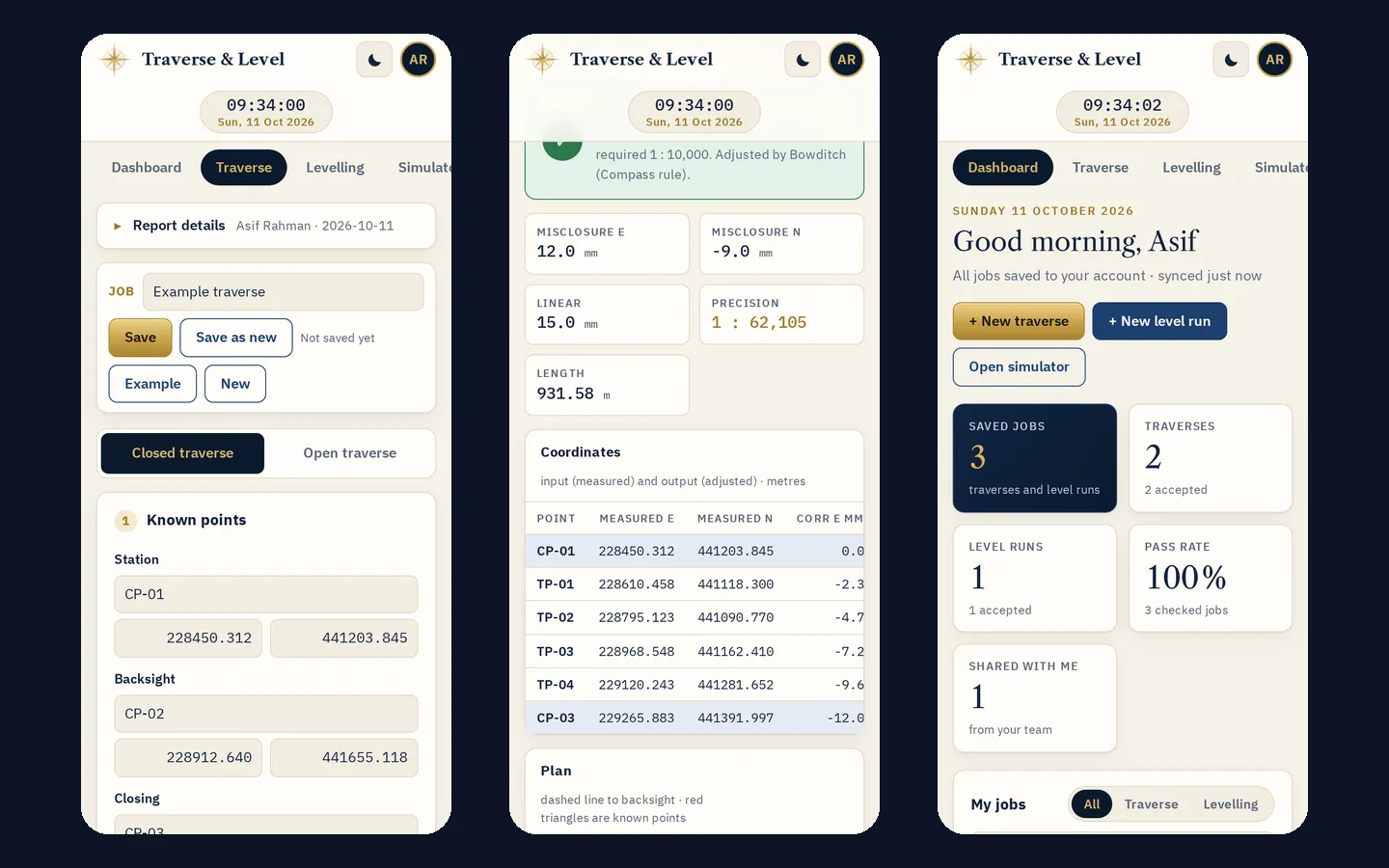
Works without internet after your first login, has a dark mode, and fits a phone on site.
Inside the app
14 screens, in the order you work
Account, traverse, levelling, simulator and sharing. Tap a screen to read its page in the user manual.
Start
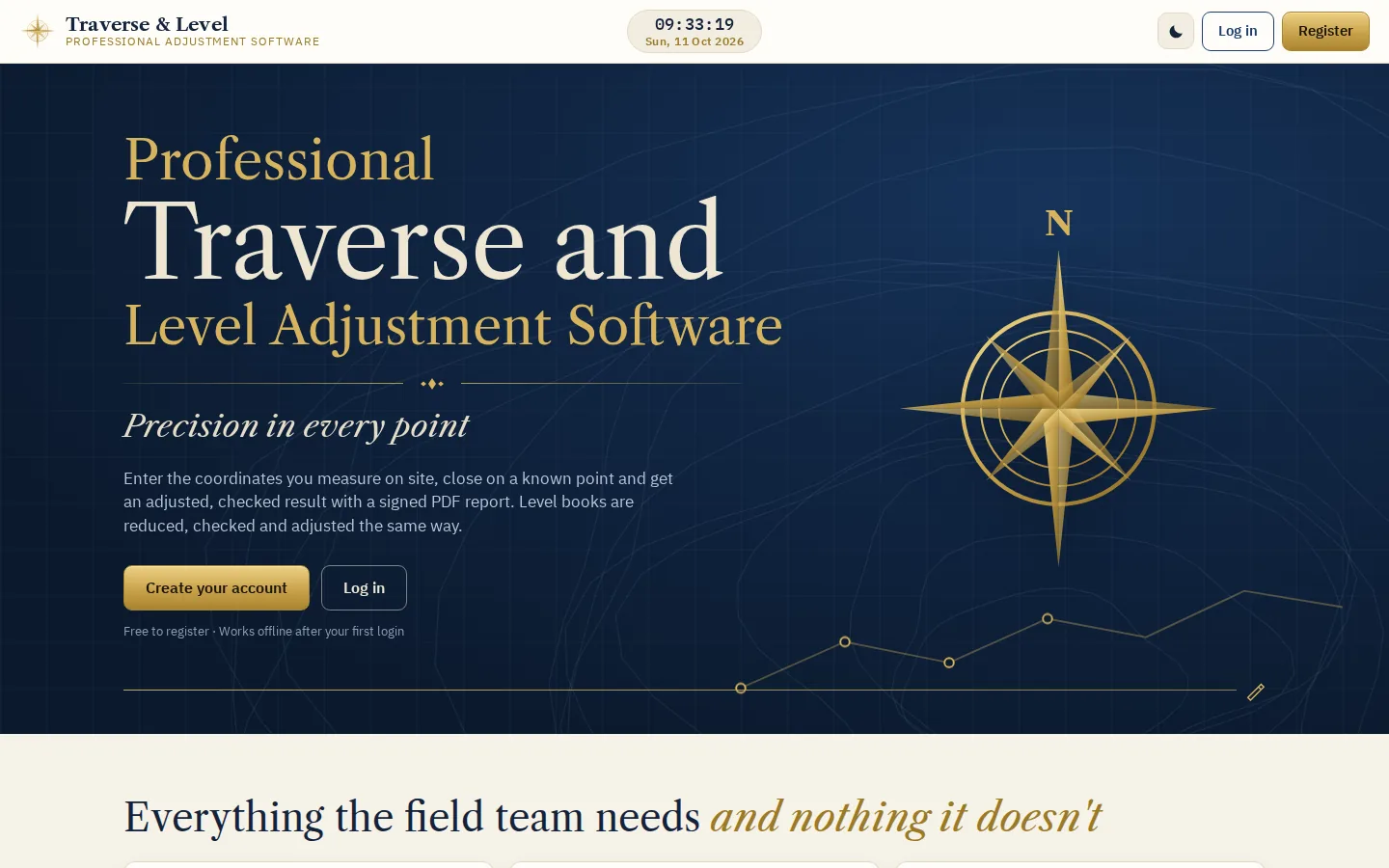
01Front page
What the software does, with Register and Log in. The clock and the light / dark switch sit at the top.
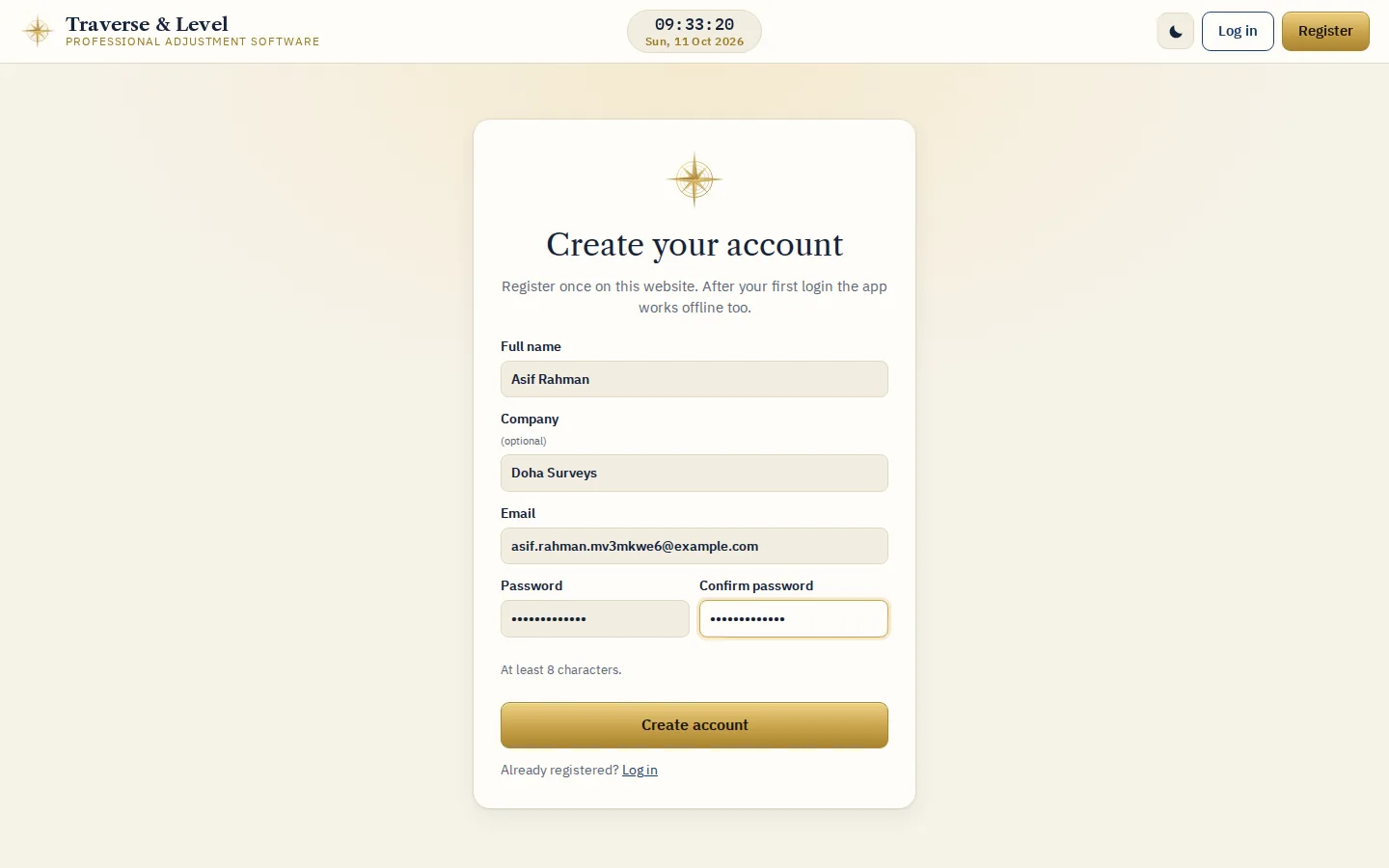
02Your account
Register once with your name, email and password. It is the same account as exceltokml.com.
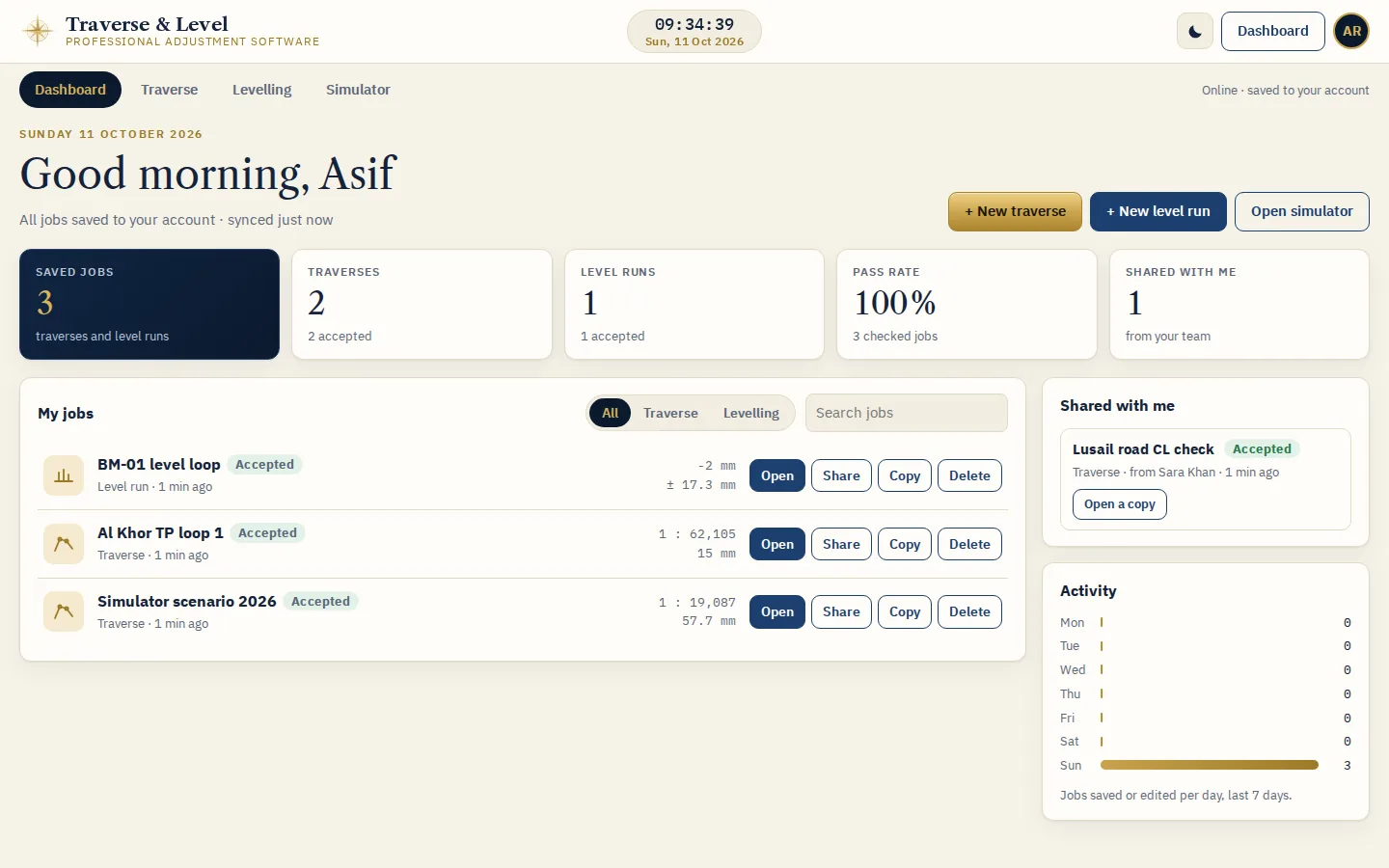
03Dashboard
Every saved traverse and level run, with its status and key result, plus jobs shared with you.
Traverse
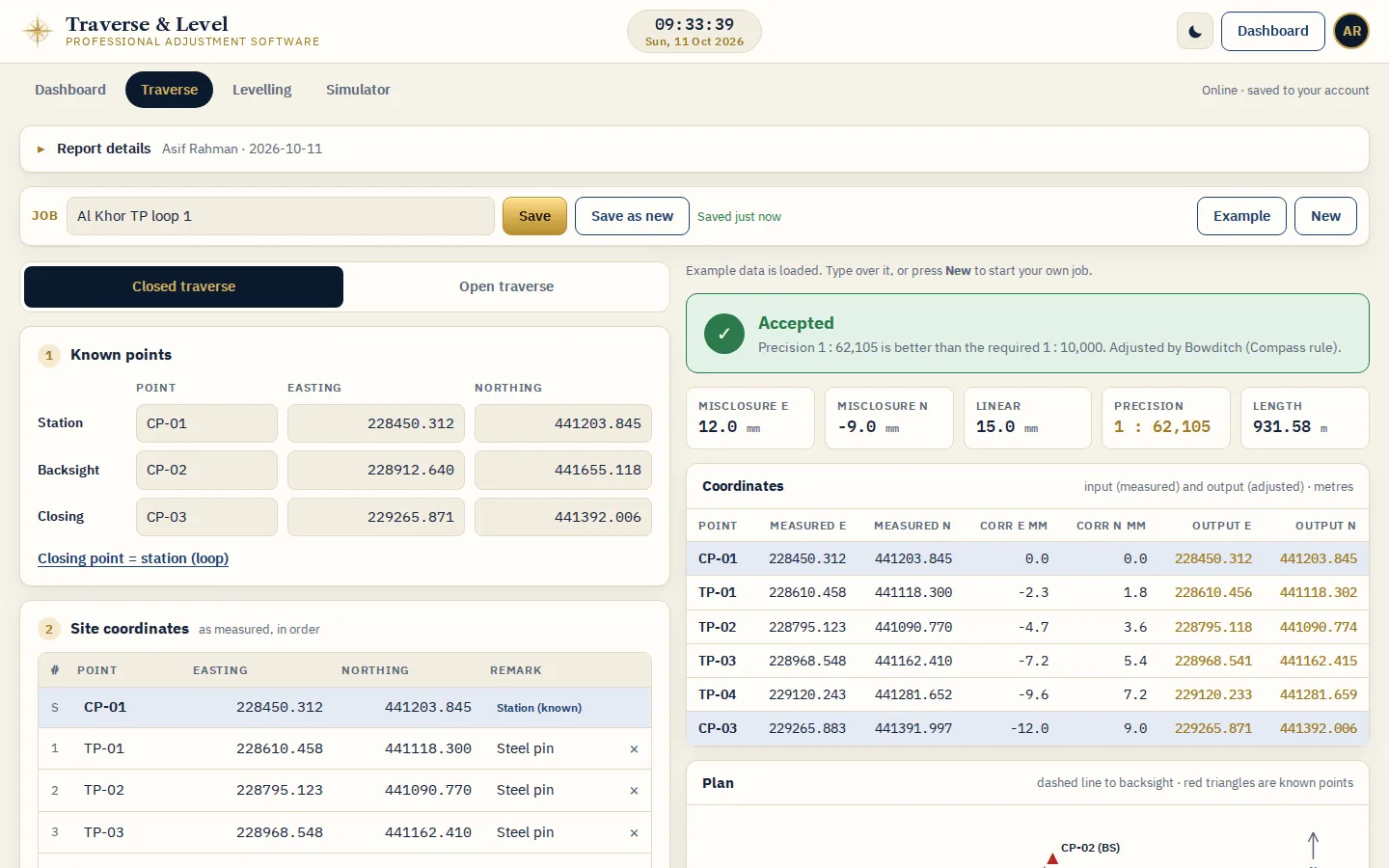
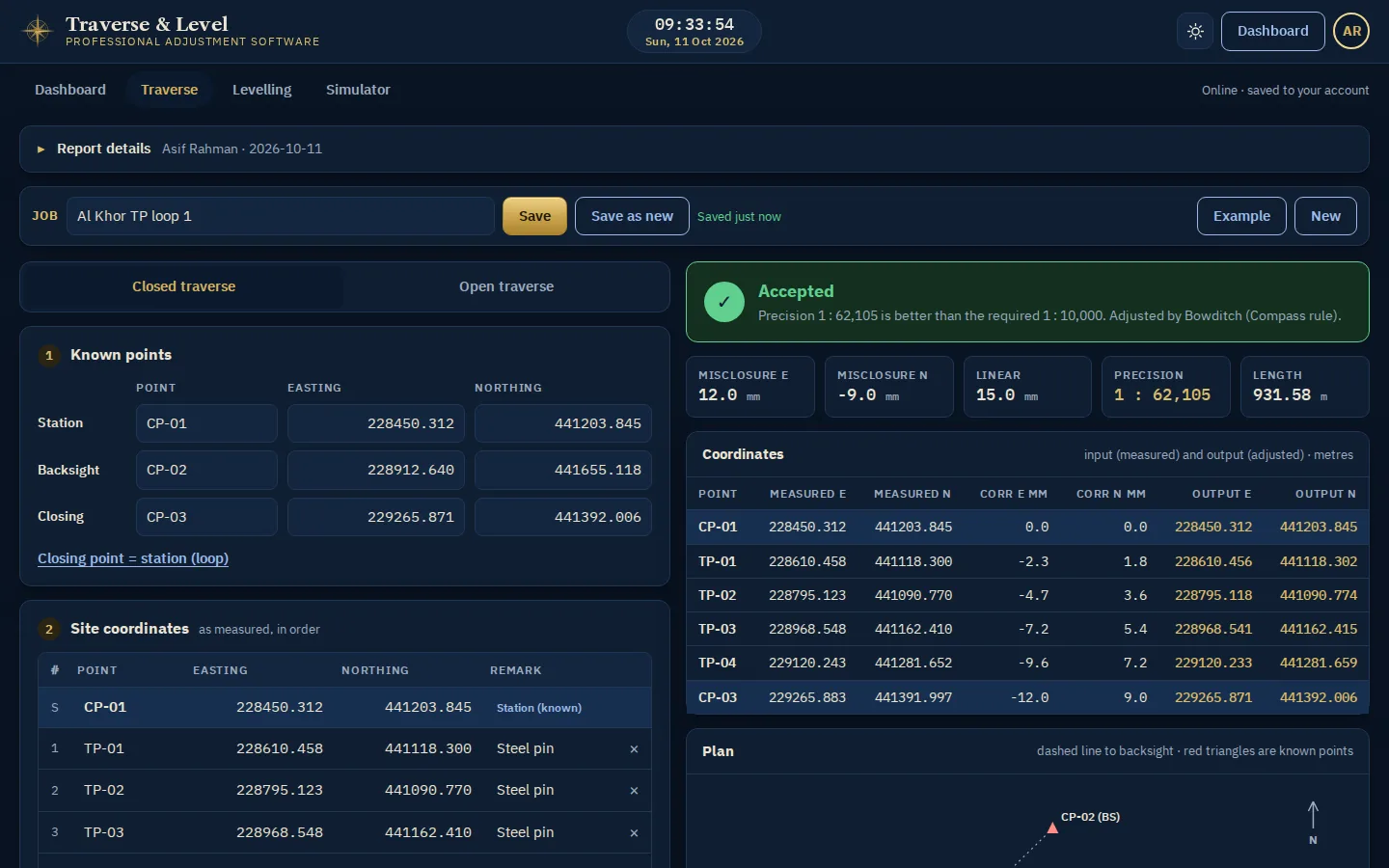
04Known points and result
Job name, known station, backsight and closing point. Accepted or Rejected updates as you type.
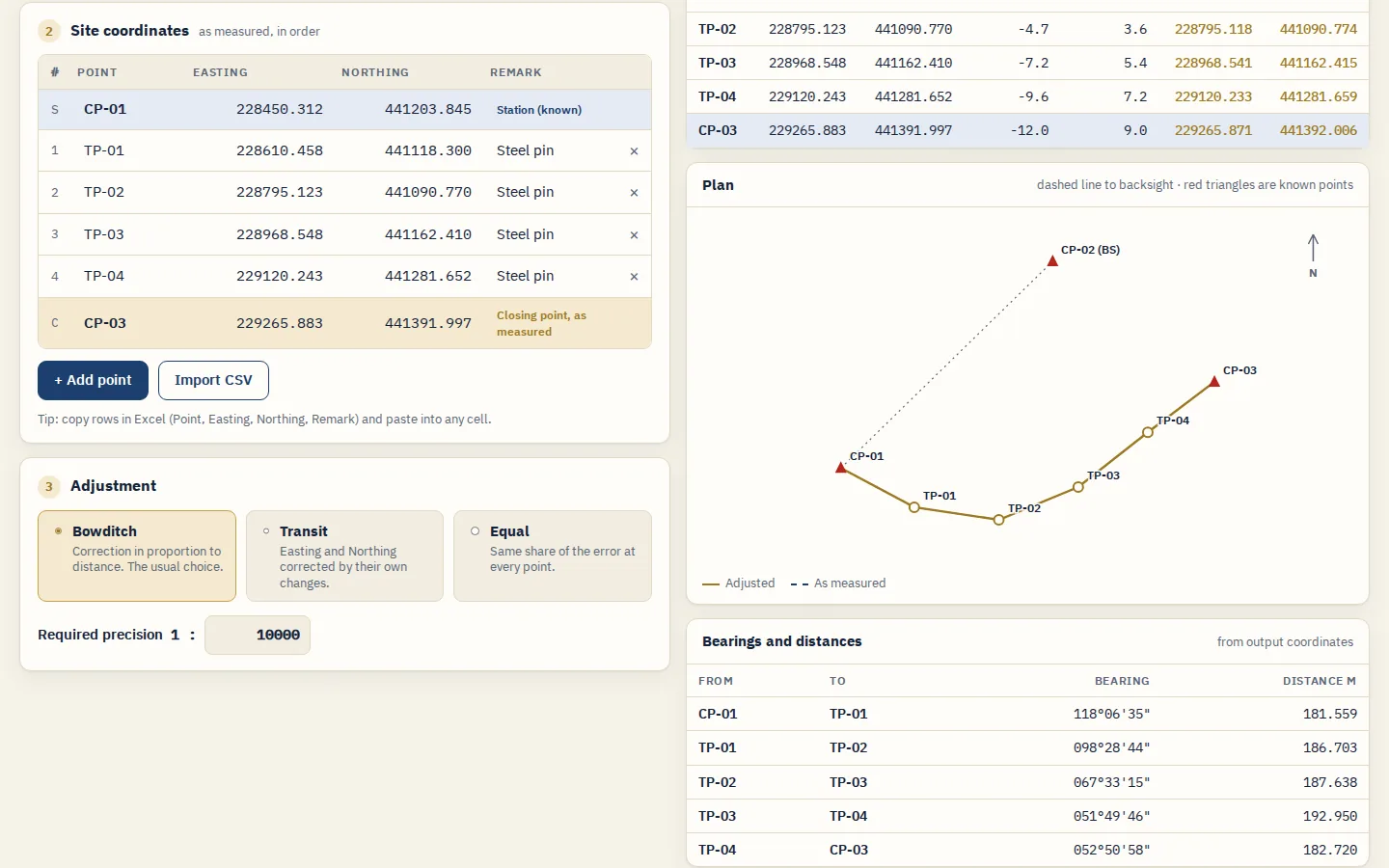
05Site coordinates and plan
The points as measured, the adjustment method and the plan of the adjusted and measured lines.
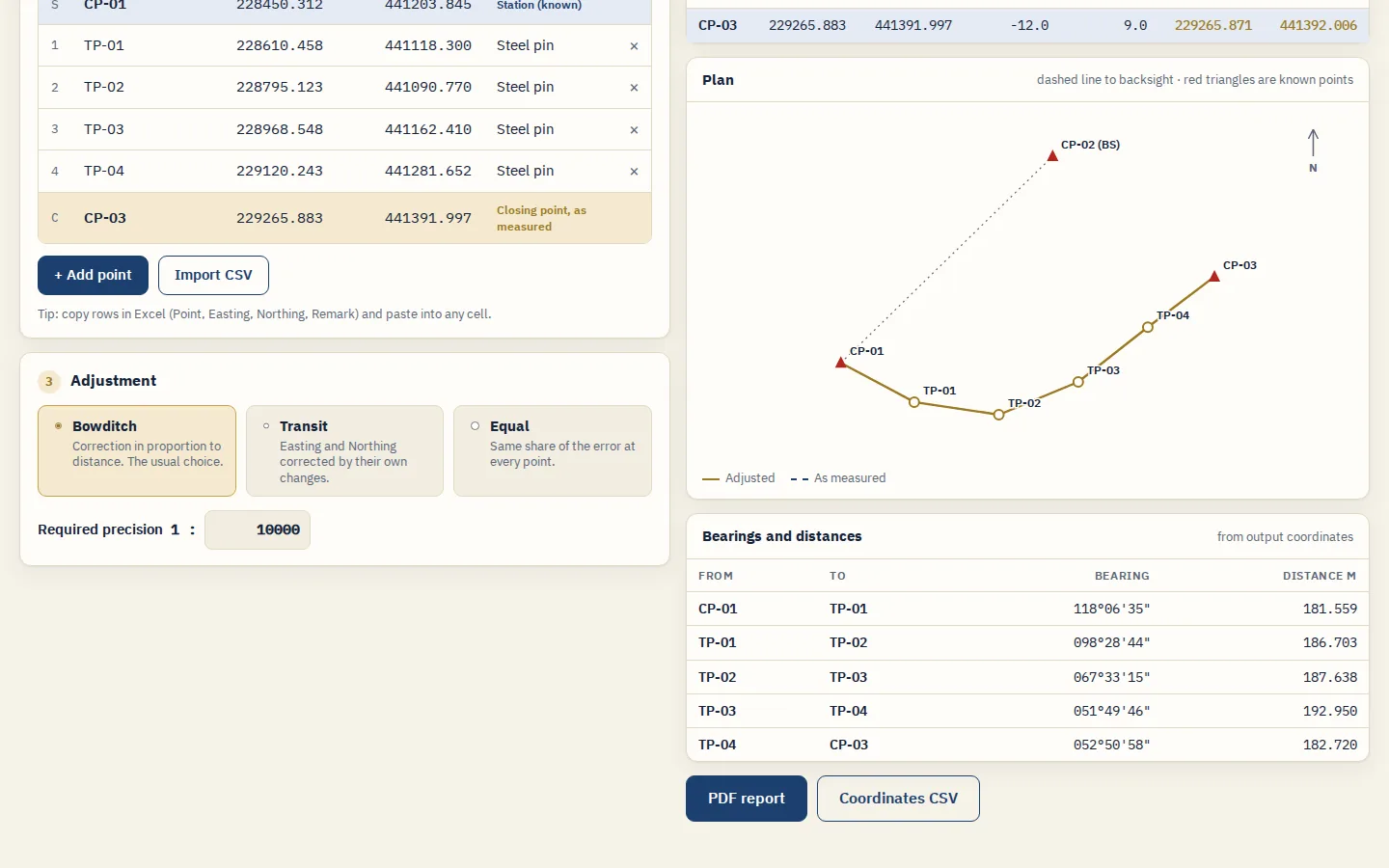
06Bearings and report
Whole-circle bearings and distances from the output coordinates, the PDF report and a coordinates CSV.
Levelling and reports
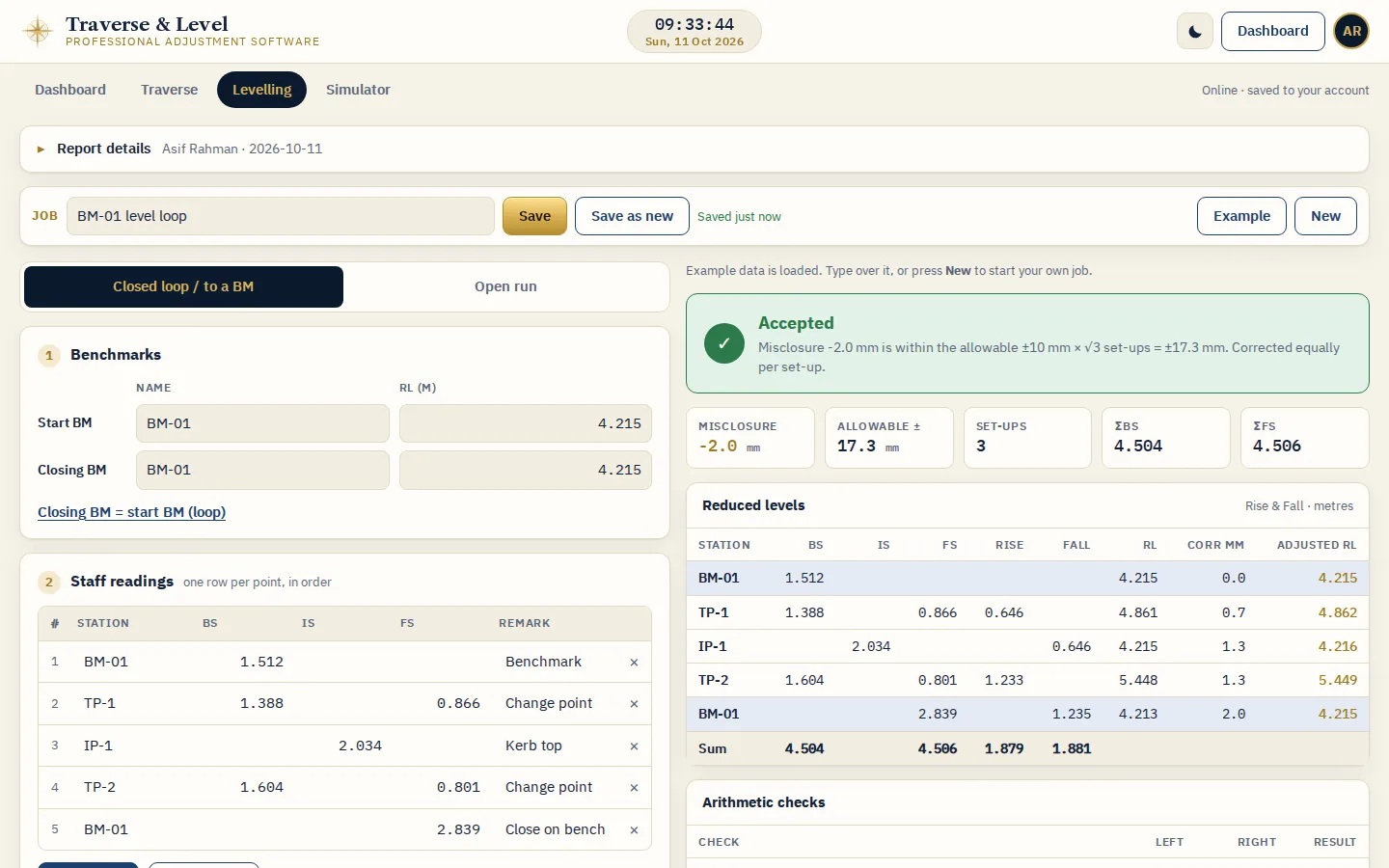
07Level book
Start and closing benchmarks, then BS, IS and FS on one row per point. Import a CSV or paste from Excel.
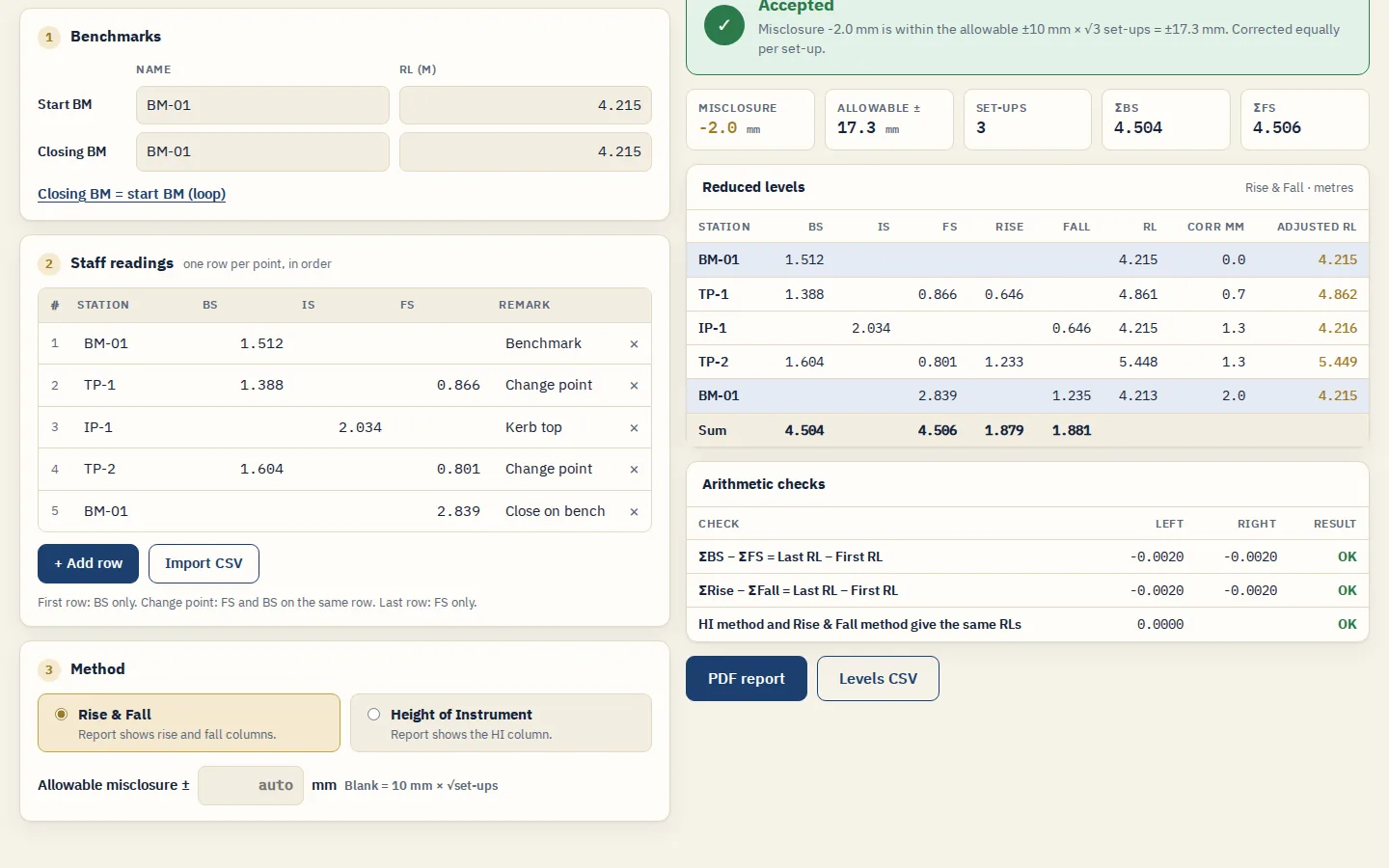
08Levelling result
Misclosure against the allowable, reduced levels, corrections, adjusted RLs and the arithmetic checks.
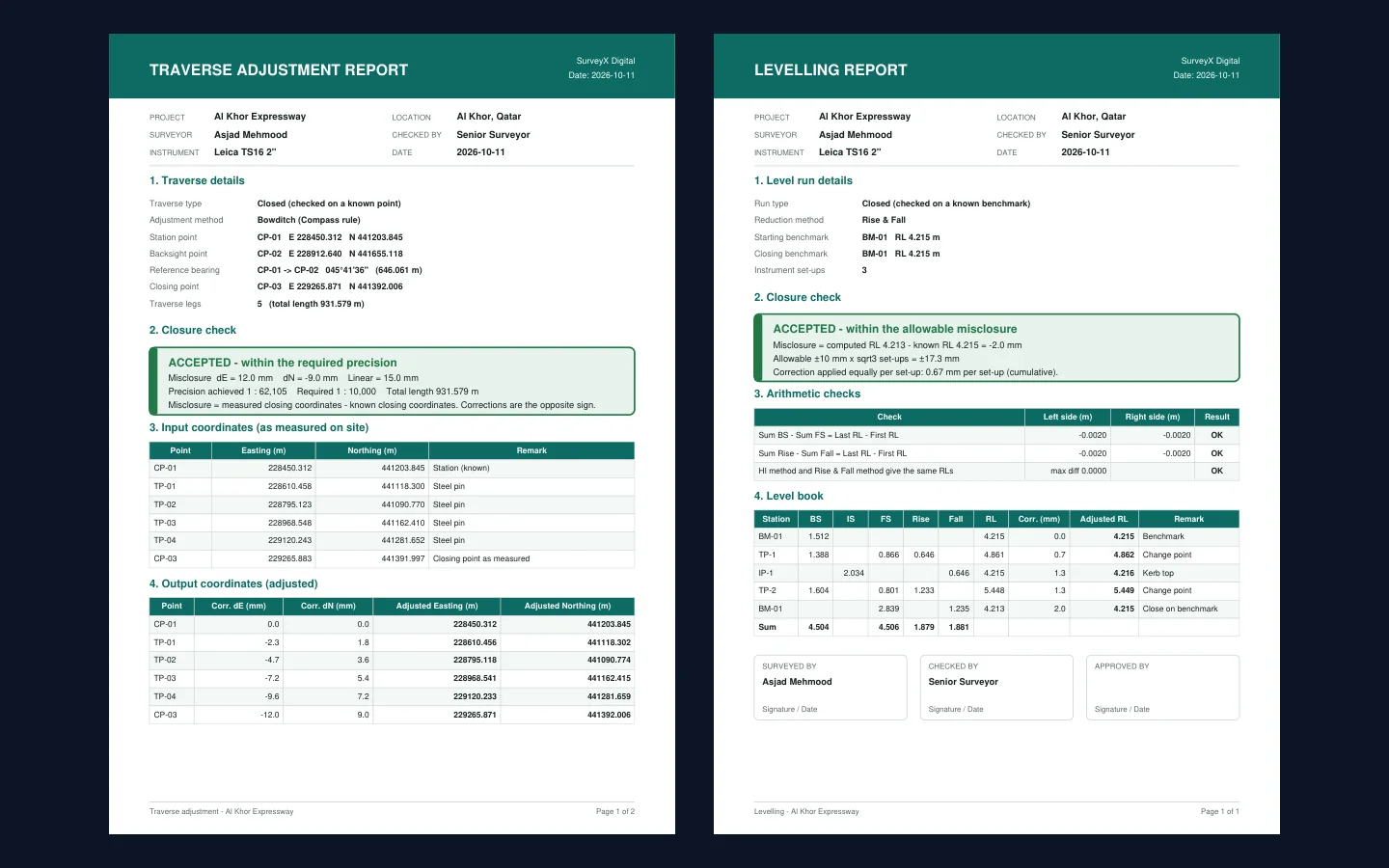
09PDF reports
Traverse and levelling reports with your report details and boxes for Surveyed, Checked and Approved by.
Simulator and sharing
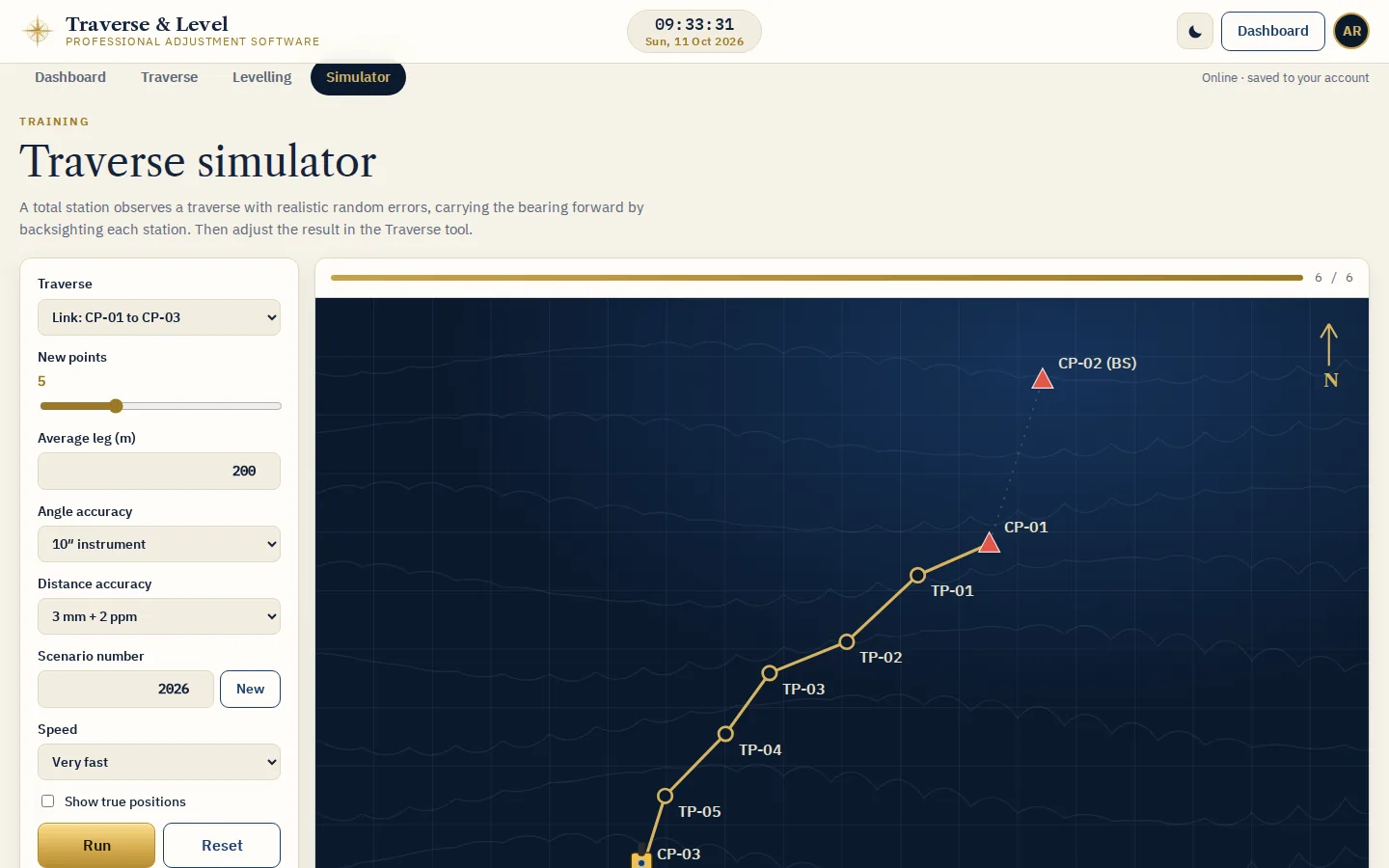
10Traverse simulator
Choose a link or loop, the instrument accuracy and a scenario, then watch the total station observe it.
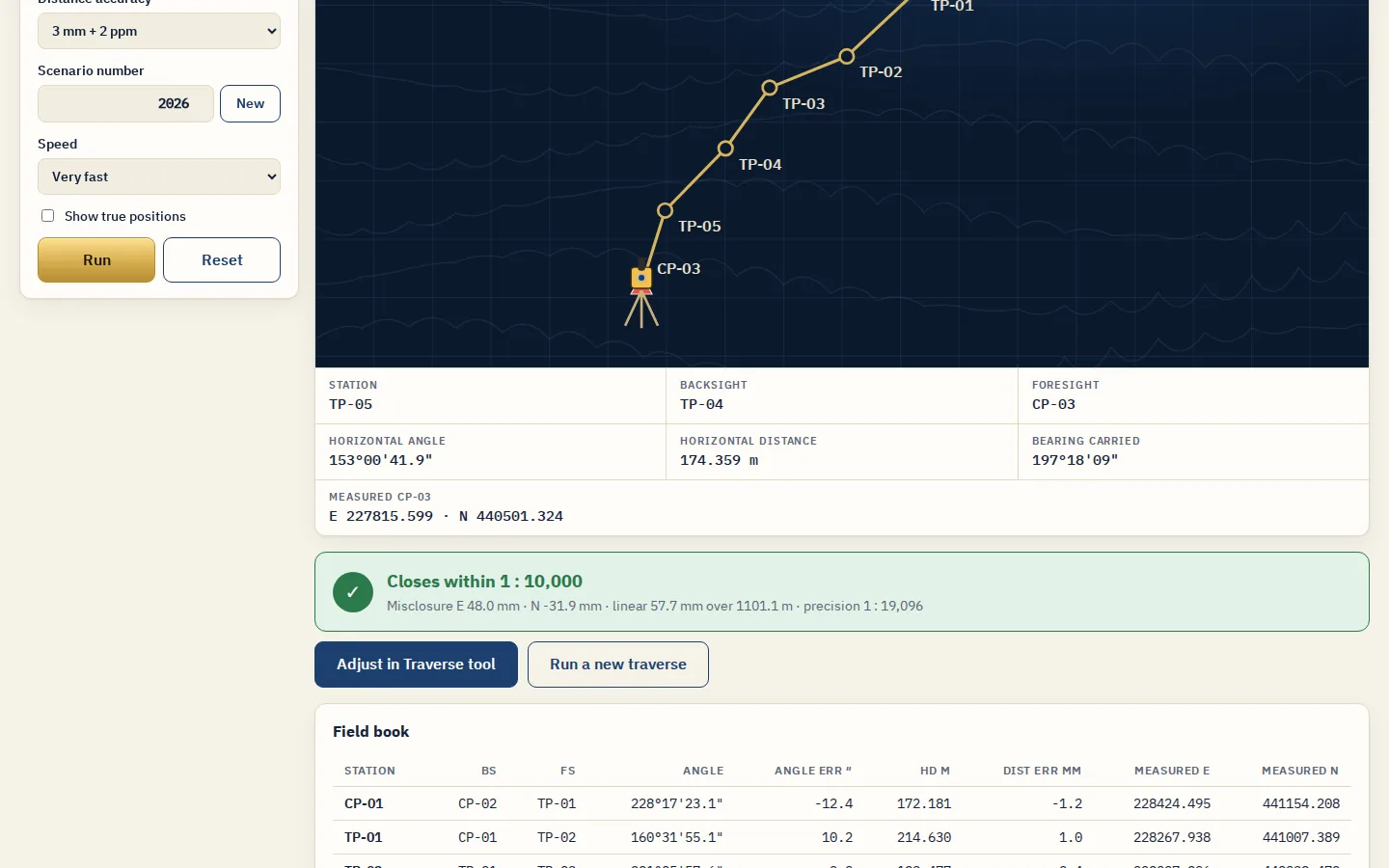
11Simulator result
Misclosure and precision, the field book with every random error, and Adjust in Traverse tool.
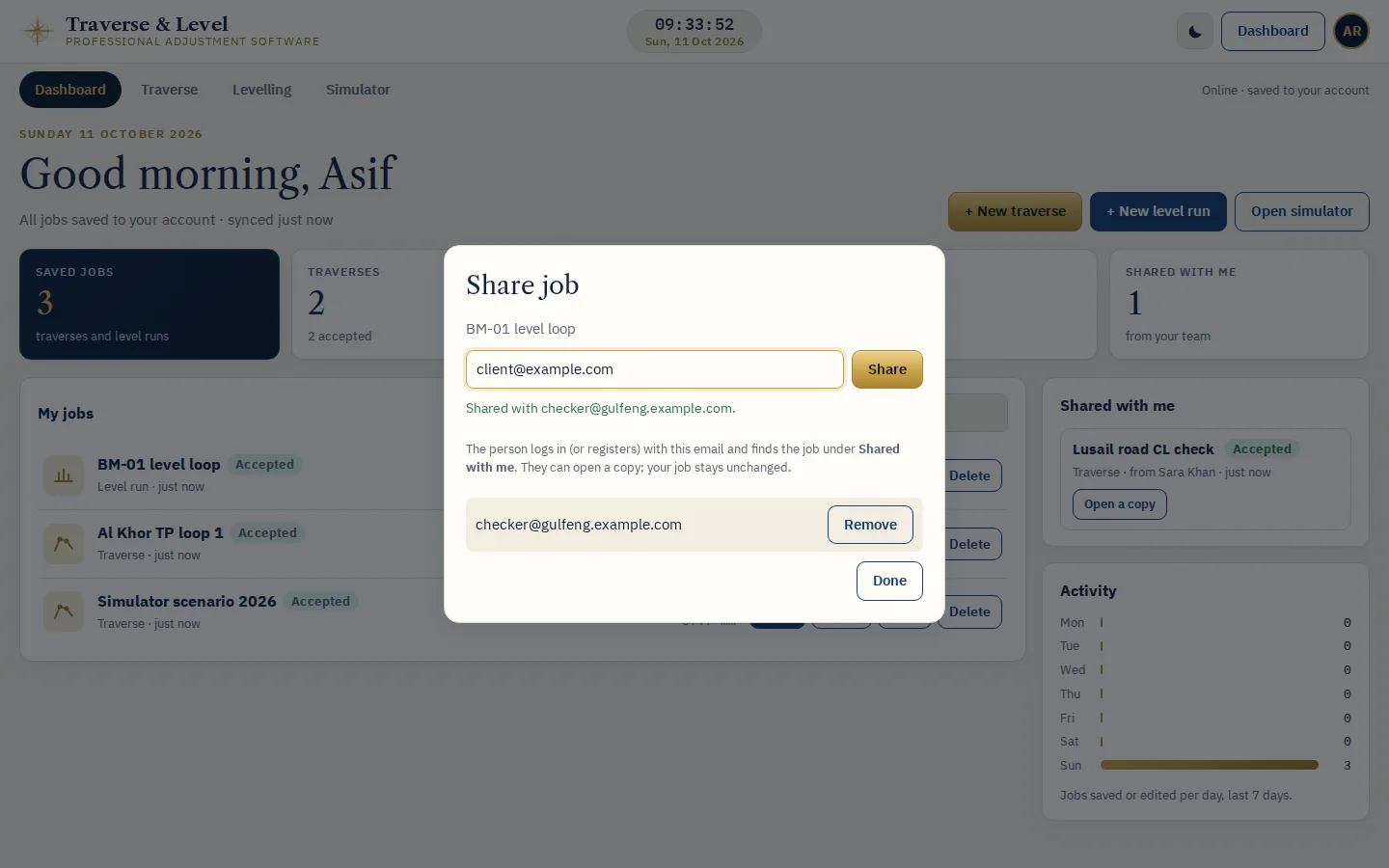
12Share a job
Type a colleague's email. They find the job under Shared with me; Remove stops sharing.
How it works
Six steps from login to report
- 1
Open the app
Open the web app in Chrome, Edge, Safari or Firefox, or run the Windows program.
- 2
Register or log in
Use your exceltokml.com account, or create one free. After your first login the app also opens offline.
- 3
Type the known points
Station, backsight and closing point for a traverse; start and closing benchmark for a level run.
- 4
Enter the site data
Type the points or the level book, paste the rows from Excel, or import a CSV.
- 5
Check and adjust
Choose Bowditch, Transit or Equal, or Rise & Fall or HI, and read Accepted or Rejected at once.
- 6
Save, report and share
Save the job to your dashboard, download the PDF report and share it with the people who need it.
Good to know
- A mathematical close is not an acceptance decision: you and your checker sign off the survey.
- Never lower the required precision just to make a traverse pass. Check the closing point, then each point against the field book.
- The plan sketch and the plots are guides, not certified drawings.
- Jobs saved in the web app go to your exceltokml.com account. Jobs saved offline upload by themselves when you are back online.
- The Windows program is the web app in its own window: log in with the same account and you see the same jobs. Open it once with internet; after that it also opens offline.
- Logging out of the app also logs you out of exceltokml.com. Change your password from your account page on this website.
Get it
Use Traverse & Level 2.0
Free. Open it in the browser with your Excel to KML account, or download the Windows program.
Web app
Chrome, Edge, Safari or Firefox, on a computer or a phone. Jobs are saved to your account, shared with your team, and the app keeps working offline after your first login.
Open the web appWindows program
Installer for Windows 10 and 11. Adds Start menu and desktop shortcuts, needs no administrator rights and updates itself. Log in with your Excel to KML account: the same jobs as the web app.
Sample files
Practise before your own job. The manual's Sample files page shows how to use them.
- sample-traverse-site-coordinates.csv · Site coordinates of the example traverse. The first lines give the known points to type in step 1.
- sample-level-book.csv · The example level book: a closed loop on BM-01, RL 4.215.
- sample-data.xlsx · The same two samples in Excel, ready to copy and paste.
- sample-traverse-report.pdf · The PDF report the example traverse produces.
- sample-level-report.pdf · The PDF report the example level book produces.
Need a quick check in the browser? Try the free online traverse adjustment. Questions or a feature request? Write to us.